Wednesday, February 6, 2013

Node.JS on Raspberry Pi with OSX, part 2

So after you plug everything (the power supply last), on the screen you should see Raspbian Wheezy booting. Lots of logs in the console and finally what looks like a BIOS screen:


If you don't then you will have the problem I had. In the past hours I struggled a lot because I couldn't see anything on the screen. I tried reinstalling the OS image on the SD (in at least three different ways) and plugging different devices but nothing happened. In the end the problem was indeed the screen (and not the OS as I was supposing). Basically I was using a DELL screen which had a DV input and I was using a HDMI-DV cable. Apparently Raspberry Pi doesn't like that kind of screen inputs. By chance I found a screen with an HDMI input and I could test the Raspberry Pi on it, and it worked!
If you have a different problem I suggest you to try asking on the official forum, there is some helpful people over there.

Anyways, it may also happen that you see something, but not that screen. If that's the case try running the following command:


sudo raspi-config

Then I suggest you set up the keyboard through configure_keyboard and set the timezone through change_timezone. If you happen to have an SD card quite big (more than 4GB at least) then I suggest you also check out expand_rootfs to enable all that space. Also, remember to setup ssh when setting the keyboard by running


sudo setupcon

Then you are good to go! Just hit <Finish> and enjoy your brand new Raspberry Pi. In the next (and hopefully last) post I will show how to install Node.JS and some other useful package.

Tuesday, February 5, 2013

Node.JS on Raspberry Pi with OSX, part 1

During these days I borrowed a Raspberry Pi. I would like to try to set up a Node.js server on it. I decided to write this post to show how I did the whole thing. Just to make things clear, I'm running on OSX.

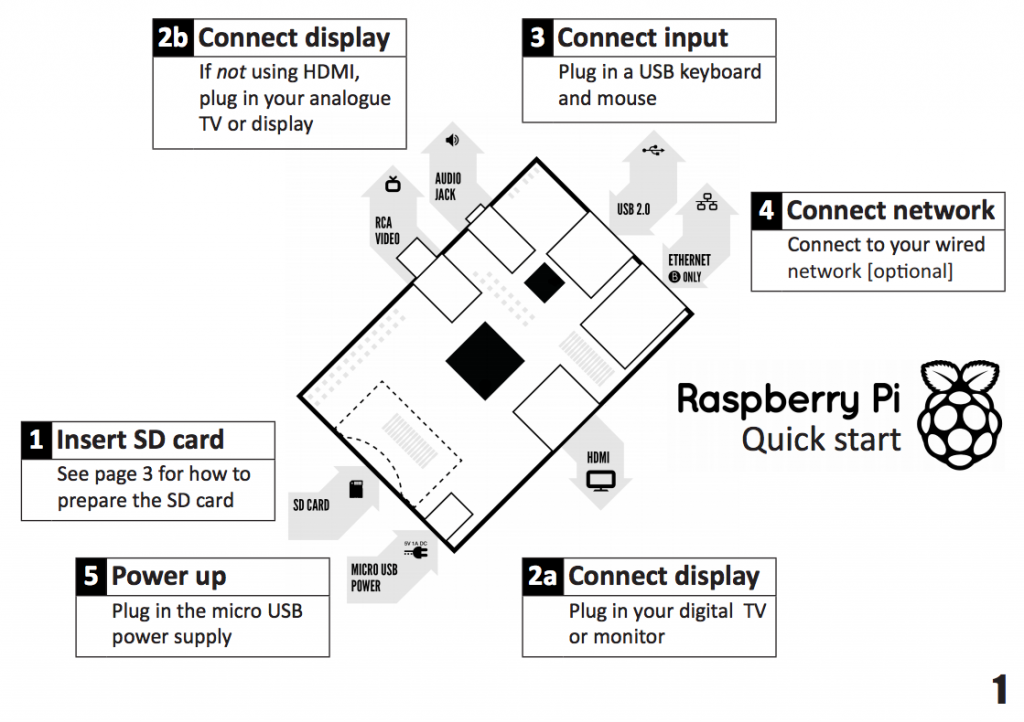
So first of all once you have your Raspberry Pi, you should mount the OS image on the SD card. Some RPi comes with an SD card with everything setup. If that's the case, you are lucky and can skip this post. Otherwise, just connect the SD card to the machine and mount the OS image on it. To do so you first need to download the image from here. I'm using the  Raspbian Wheezy, which is an optimised version of Debian for RPi. After having downloaded the image, unzip it and download this app. Unzip it and open it. It will ask you to locate the image of the OS first, then you will have to choose the SD card on which you want to mount the image, and finally your password. After it is done, you can remove the SD card and plug it into your RPi. The following image shows how to set up the wirings for your RPi.


Now you have everything ready to start programming on your RPi. In the next post (hopefully) I will show how to set everything up at a software level to start your own Node.js server on it.

Monday, February 4, 2013

Measuring performance of a processor with Node.js

Some time ago I needed to measure the performance of the cores I was using on a machine while a Node.js server was running. I came up with different ideas, including writing a bash script that would measure it the hardcore way. I then realised I could use the os module that comes with Node and use the data it returns to measure it myself.

First of all, take a look at the specification of the method os.cpus() here. It shows how to call it and what is the return value. To measure the performance of the system, it is sufficient to take consecutive snapshots, compute a delta, sum all the data and compute the usage percentage like so:


//include the module
var os = require('os');

//data collected on the previous tick
var previous_cpu_usage;

//[...] collect previous_cpu_usage

//get the cpu data
var cpu_usage = os.cpus();

//iterate through it
for(var index = 0, len = cpu_usage.length; index < len; index++) {
    var cpu = cpu_usage[index], total = 0;
    var prev_cpu = previous_cpu_usage[index];
           
 //for each type compute delta
 for(type in cpu.times){
     total += cpu.times[type] - prev_cpu.times[type];
 }
           
 //print it for now
 for(type in cpu.times){
     if(type === "user" || type === "idle")
         console.log("\t", type, Math.round(100 * (cpu.times[type] - prev_cpu.times[type])/ total));
}

The idea is very simple. Here I'm not showing how to collect data consecutively. This can be done by the means of two timeouts: one that collect one data, then the second collect the second one and then in the callback of the second timeout data gets aggregated. I'm not showing the code exactly as it looks in my solution as it involves message passing through a (big) topology.

In the example shown, I'm printing the data that corresponds to user and idle time, since it's the one most people may be interested in. Anyways, with this code any percentage out of the returned data can be computed.

Sunday, February 3, 2013

Bitwise operations

Some time ago I was talking with a second-year student after a C exam. He was pretty satisfied about the job done, but asked me a question about the ~ operator. At first I didn't quite remember, so I told him that was probably the bitwise not. Later I discovered I was right, so I took the opportunity to refresh my knowledge of the bitwise operations in JavaScript. The purpose of this article is to show which bitwise operations JavaScript offers.

First of all, we can only apply bitwise operations on numeric operands that have integer values. These integer are represented in the operation as a 32-bit integer representation instead of the equivalent floating-point representation. Some of these operations perform Boolean algebra on the single bits, while the others are used to shift bits.

Bitwise NOT ( ~ )

This operator simply flips all the bits of the given integer. In numeric terms, it changes the sign of the number and subtract 1. For example ~0x0000000f will become 0xfffffff0 after the evaluation.

Bitwise AND ( & )

Performs a bitwise Boolean AND operation and set in the result the bit only if it is set in both operands. For example 0xfff666fff & 0x000fff000 will evaluate to 0x000666000.

Bitwise OR ( | )

Likewise the bitwise AND, the bitwise OR behaves in the same way, but a bit is set in the result only if it is set in one or both of the operands.

Bitwise XOR ( ^ )

The bitwise exclusive OR behaves like a normal XOR. The bit in the result is set only if the first operand is true and the second is false, or viceversa. If both are true or both are false, the bit in the result is set to 0.

Shift Right ( >> )

This operator moves all the bits in the first operand to the right by the number of bits specified in the second operand (up to 31). The bits that are shifter off the right are lost, and the filling is given by the initial sign of the first operand (if the operand is positive, it will be zero-filled, otherwise f-filled).

Shift Right with zero Fill ( >>> )

Behaves exactly like the shift right operator, but the filling on the left is always 0, regardless of the sign of the first operand at the beginning of the operation.

Shift Left ( << )

This operator moves all the bits in the first operand to the left by the number of bits specified in the second operand (again, up to 31). The rightmost part of the number is filled with 0s.

These operations are not really used by JavaScript programmers, but it's important to know they exist.

Saturday, February 2, 2013

instanceof & typeof Operators

Sometimes, even if it is considered bad habit, we need to check the class of an object in JavaScript. Classes may be defined by the programmer, but I will cover this topic later, for now let's just focus on classes defined by the interpreter. There are many, for example:
  • Object
  • String
  • Number
  • Date
  • Function
  • ...
To check if an object is an instance of a specific class, JavaScript offers the instanceof method, which may be used in the following way:

var mynmbr = new Number(1);
var mystrng = new String("disasterjs!");
var myfunc = function(){
    console.log("hello world!");
}
mynmbr instanceof Number //returns true
mynmbr instanceof Object //returns true
mystrng instanceof String //returns true
mystrng instanceof Object //returns true
mynmbr instanceof String //returns false
myfunc instanceof Function //returns true

Be careful when using instanceof about what you are checking. For example numbers and strings not wrapped in the constructor are treated as primitive value, thus a call for instanceof in that case would produce an unexpected result:


var mystrng = "disasterjs!";
var mynmbr = 1;

mynmbr instanceof Number //returns false
mynmbr instanceof Object //returns false
mystrng instanceof String //returns false
mystrng instanceof Object //returns false

What about the typeof operator? This operator returns the class as a string. The following table summarises its possible return values:

Type
Result
Undefined"undefined"
Null"object"
Boolean"boolean"
Number"number"
String"string"
Host object (provided by the JS environment)Implementation-dependent
Function"function"
E4X XML object"xml"
Any other object"object"

Programmer may be careful here when checking a Null object as the result of a typeof will return "object". Here are a couple of examples on how to use typeof.


typeof 1 === "number" //true
typeof Number(1) === "number" //true
typeof 1 === "object" //false
typeof undefined_variable === "undefined" //true
typeof true === "boolean" //true


And that's it.

Friday, February 1, 2013

JavaScript, passing-by-reference and slice()

Some time ago I had a problem with arrays and assignments. I was working with a distributed system in JavaScript; the root process sent some "work" to do to some subprocesses (workers) and those returned an array as result, which was modified inside the callback of the dispatching function.

The issue was that when I modified the array, I then assigned it to a variable and passed it to a function. The problem was that while I was working in the callback with this array, it got modified somehow. I later understood that the problem was due to the fact that JavaScript passes values by reference. That is basically the array I assigned to the variable before passing it to the function was simply saving it's reference on the variable, but not really duplicating it.

The following example will show the problem.


var arr = [1, 2, 3]

var arr2 = arr;

arr2[0] = 0;

console.log(arr[0]);

//prints 0


As shown, this prints zero. To solve the issue I used a custom procedure to copy every single value of the array into a new one. This is pretty painful and later I discovered I could simply use the slice() function. The following snippet based on the previous example will show the black magic:


var arr = [1, 2, 3]

var arr2 = arr.slice();

arr2[0] = 0;

console.log(arr[0]);

//prints 1


Basically that's it. It's a very naive problem, and a skilled programmer may quickly find the issue, but knowing the existence of the slice() function may save quite some time.

How to syntax-highlight code on Blogger

One of the first issues I had with this blog was how to syntax-highlight code snippets. All I could find on the internet was garbage and old tutorials with the previous Blogger interface. Then I finally found this blog that proposed a working solution. Actually, it's the only solution that worked, so I'm suggesting it here, but I'm not entirely satisfied with the CSS that comes with it, so I might slightly modify it sooner or later.
If somebody knows a better solution, let me know in the comments, I'll be glad to take a look at it.